
Listen to this Post
Introduction: From Simple Search to Digital Noise
Windows Search was once designed to do one thing well: help users quickly find files, apps, and system settings. For many people, it still technically works. But in recent versions of Windows 11, the experience has become increasingly cluttered, promotional, and disconnected from its original purpose. Instead of feeling like a local operating system tool, Windows Search now resembles a Bing-powered content feed, complete with AI shortcuts that lead straight to the web. This shift has raised serious usability questions, especially for users who just want fast, distraction-free search.
Windows Search Still Works, But at a Cost
Windows Search is not completely broken. For basic tasks like launching apps or finding documents, it usually does the job. The problem is not functionality but presentation. The interface has grown crowded with suggested content, cards, and external links that dilute its usefulness. What used to be a clean search box now feels like a promotional surface.
The Homepage Now Feels Like a Social Feed
Opening Windows Search and staying on the homepage reveals a layout that feels more like a curated feed than a system tool. A large card dominates the top, accompanied by stacks of related links on the side. As users scroll down, more sections appear, each adding visual noise rather than efficiency. The design increasingly mirrors Bing’s content strategy rather than Windows’ productivity focus.
AI Tools Appear Front and Center
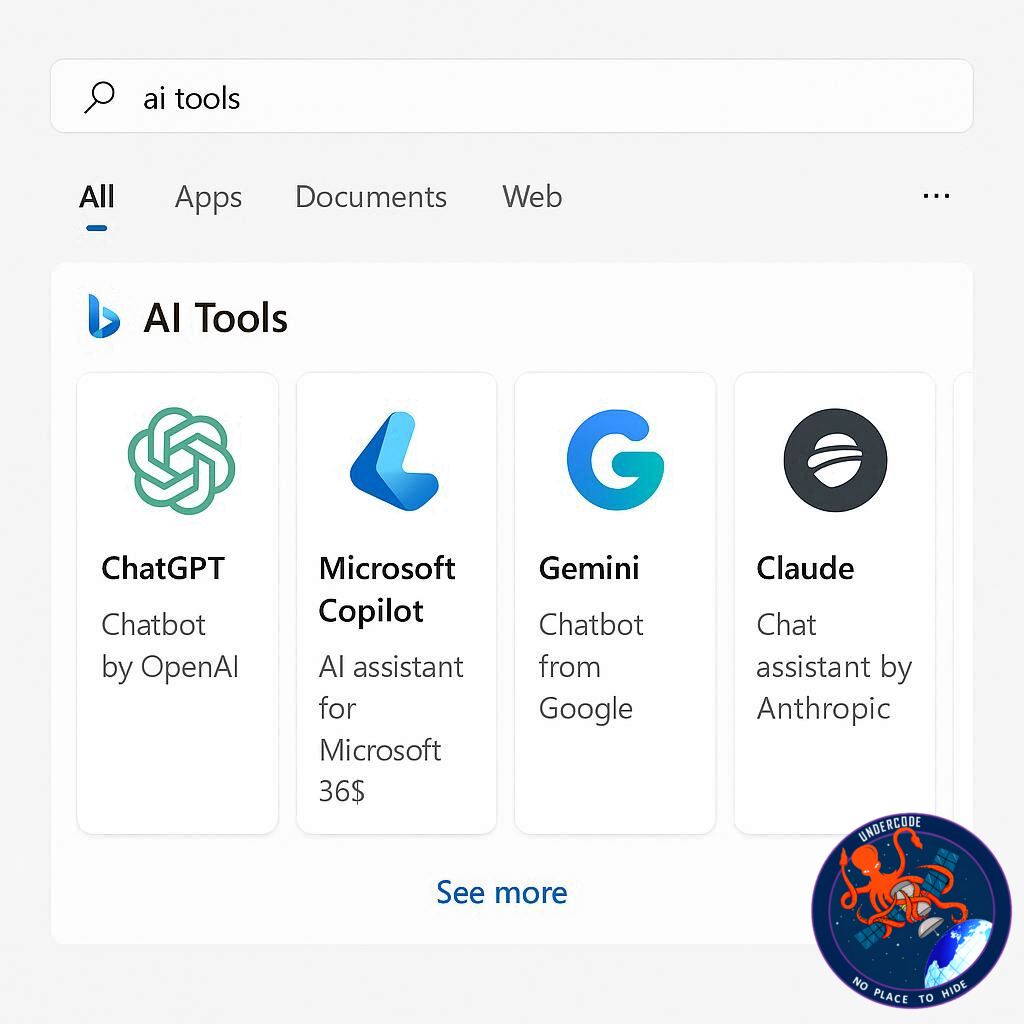
Microsoft recently added a new “AI Tools” section directly into the Windows Search grid. This shelf includes four tiles: Create with AI, Search with AI, Image Creator, and Video Creator. Their placement is deliberate and impossible to miss. Even users who open Search simply to find a local file are immediately exposed to these AI shortcuts.
AI Tools Add No Real Search Value
Clicking any of these AI tools does not enhance local search functionality. Instead, each tile redirects the user to Bing.com in the default browser. This confirms that the tools are not integrated features but promotional shortcuts. Worse, Microsoft does not provide a built-in option to disable or hide them, making the clutter unavoidable for most users.
Windows Search Becomes a Marketing Surface
By embedding Bing and AI promotions directly into the search UI, Microsoft has transformed Windows Search into a marketing layer. The tool is no longer optimized purely for speed or relevance. Instead, it pushes users toward Microsoft’s web ecosystem, regardless of whether that aligns with their intent.
Removing AI Tools Through the Windows Registry
Although Microsoft does not offer an official toggle, Windows 11 still allows advanced users to modify system behavior. By editing the Windows Registry, it is possible to remove AI tools and other suggestions from Windows Search entirely. This approach restores a cleaner, more functional interface.
Registry Access Is Required
To remove the clutter, users must open the Registry Editor with elevated privileges. The relevant path is located under the Policies section of the Windows system registry, where Windows Explorer-related settings are managed.
Creating the Explorer Key
In many installations, the required “Explorer” key does not exist by default. Users can manually create it inside the Windows folder under Microsoft. This step enables fine-grained control over Search behavior.
Disabling Search Box Suggestions
By creating a DWORD value called DisableSearchBoxSuggestions and setting it to 1, Windows is instructed to stop displaying suggested content. This includes AI tools, Copilot icons, and other promotional elements that appear in the Search UI.
Restart Required for Changes to Apply
Once the registry change is made, a system restart is necessary. After rebooting, Windows Search returns to a much simpler interface, focused solely on local results without AI promotions.
A Cleaner Search Experience Restored
With suggestions disabled, Windows Search feels faster and less distracting. The removal of AI tiles and Bing-driven content highlights how much unnecessary clutter had been introduced into the tool.
Windows 11 Allows Deeper AI Feature Control
Beyond Search, Windows 11 includes numerous AI-related features that can also be disabled through Registry edits, Group Policy, or system settings. In total, users can turn off more than a dozen AI components if they choose to.
Microsoft Is Not Fixing Windows Search
Despite user complaints, Microsoft has shown little interest in decluttering Windows Search. Instead of refining the existing interface, the company is focusing on an entirely new approach.
Ask Copilot Is the Future of Search
Microsoft is currently testing a new Copilot-powered feature called “Ask Copilot,” expected to roll out as part of Windows 11 updates in 2026. This tool is positioned as a replacement rather than an improvement to Windows Search.
Ask Copilot Is Less Cluttered
Unlike Windows Search, Ask Copilot presents a minimal interface. It avoids large content cards and focuses on direct responses, making it feel more purposeful and less promotional.
AI That Understands Intent
Ask Copilot uses the same underlying search index as Windows Search, but it adds natural language understanding. Users can ask questions in plain English, and Copilot interprets the intent instead of relying on exact keywords.
Practical Example of Smarter Search
If a user types “how to make my screen brighter,” Ask Copilot understands the goal and directly surfaces the relevant system setting. Traditional Windows Search often struggles with such phrasing.
A Smoother Experience Overall
In practice, Ask Copilot feels faster and more intuitive than the current Search interface. The experience prioritizes results over content promotion, which is exactly what many users want.
Copilot Adoption Remains a Question
Despite its improvements, Ask Copilot’s success depends on whether users are willing to embrace Copilot as a core part of Windows. Some users prefer traditional tools and remain skeptical of AI-driven workflows.
What Undercode Say:
Windows Search Reflects a Larger Microsoft Strategy
Windows Search is no longer just a utility; it has become a distribution channel for Microsoft services. The addition of AI tools that redirect to Bing shows a clear priority shift from productivity to ecosystem engagement.
UI Clutter Is a Deliberate Choice
The placement of AI tiles in the main grid is not accidental. Microsoft wants users to see and click these tools, even when they are irrelevant to the task at hand. This approach sacrifices usability for visibility.
Registry Tweaks Reveal Power User Frustration
The fact that users must edit the Registry to restore a clean Search experience highlights a growing gap between casual users and power users. Microsoft increasingly designs for engagement metrics rather than efficiency.
Ask Copilot Is an Admission of Failure
By building a new search experience instead of fixing the old one, Microsoft implicitly admits that Windows Search has become too cluttered to salvage. Ask Copilot is positioned as a clean slate.
AI Is Replacing Traditional UI Design
Ask Copilot represents a shift away from menus and filters toward conversational interfaces. This can be powerful, but it also introduces dependency on AI interpretation rather than user control.
Productivity Versus Promotion
There is a clear tension between helping users work faster and promoting Microsoft services. Windows Search currently leans heavily toward promotion, while Ask Copilot attempts to rebalance toward productivity.
User Choice Is Quietly Shrinking
Although Windows remains relatively open, key features increasingly lack simple on/off switches. Registry edits should not be the primary way to reclaim usability.
The Risk of Over-AI-ification
Embedding AI everywhere risks alienating users who value speed and predictability. Not every task benefits from AI, especially basic system navigation.
A Missed Opportunity for Modular Design
Microsoft could have offered modular controls, allowing users to enable or disable AI components individually. Instead, it chose an all-or-nothing promotional approach.
Power Users Will Keep Modifying Windows
As long as Windows remains customizable, experienced users will continue stripping out unwanted features. This trend suggests growing dissatisfaction with default Windows design choices.
Fact Checker Results
Registry Method Validity ✅
The DisableSearchBoxSuggestions registry value effectively removes AI tools and suggestions from Windows Search.
AI Tools Behavior Verified ✅
AI tiles in Windows Search redirect to Bing rather than performing local tasks.
Ask Copilot Status ⚠️
Ask Copilot is still in testing and not yet a full replacement for Windows Search.
Prediction
Windows Search Will Continue to Decline ❌
Microsoft is unlikely to meaningfully declutter the existing Search interface.
Ask Copilot Will Become Default ✅
Copilot-based search is expected to replace traditional Search workflows by 2026 🤖
User Pushback Will Grow ⚠️
Advanced users will increasingly rely on tweaks or third-party tools to avoid forced AI features.
🕵️📝✔️Let’s dive deep and fact‑check.
References:
Reported By: www.windowslatest.com
Extra Source Hub (Possible Sources for article):
https://www.linkedin.com
Wikipedia
OpenAi & Undercode AI
Image Source:
Unsplash
Undercode AI DI v2
Bing
🔐JOIN OUR CYBER WORLD [ CVE News • HackMonitor • UndercodeNews ]
📢 Follow UndercodeNews & Stay Tuned:
𝕏 formerly Twitter 🐦 | @ Threads | 🔗 Linkedin | 🦋BlueSky | 🐘Mastodon


