
Listen to this Post
Introduction: Small Changes That Make Windows 11 Feel Faster
Many Windows users enjoy switching between light and dark themes depending on the time of day, lighting conditions, or personal preference. However, in Windows 11, changing the theme currently requires navigating through several menus inside the Settings app. While the process is simple, it still interrupts workflow and takes more steps than necessary.
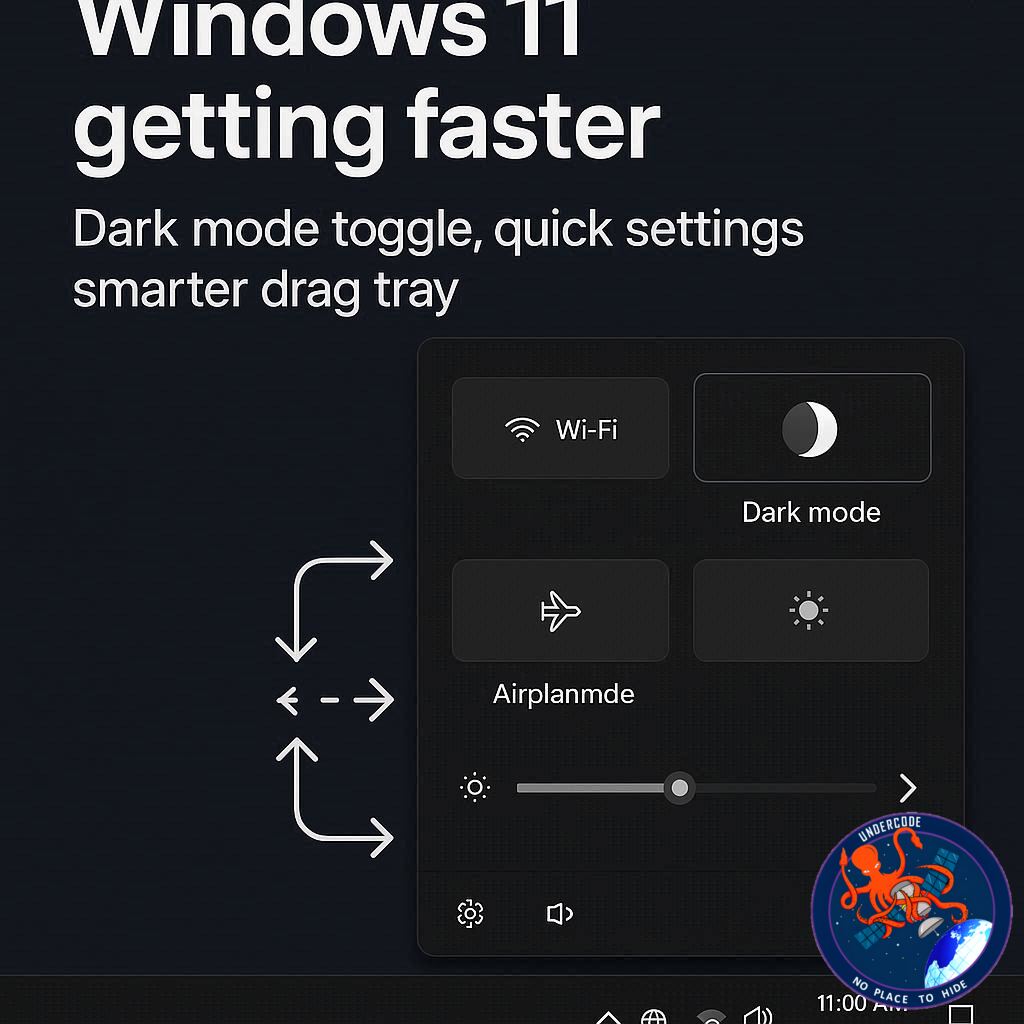
Microsoft appears to be addressing this inconvenience with a new feature currently being tested in preview builds. The company is experimenting with a Quick Settings shortcut that allows users to toggle dark mode directly from the system panel. Alongside this change, another small but noticeable improvement is coming to the Drag Tray, a feature that helps users quickly share files with apps like WhatsApp.
These adjustments might seem minor on the surface, but together they represent Microsoft’s ongoing effort to refine everyday interactions with the operating system and make routine tasks faster and smoother.
A Faster Way to Switch Between Dark and Light Themes
Currently, users who want to change the system theme in Windows 11 must navigate through several steps. The path typically involves opening the Settings app, selecting Personalization, then entering the Colors section to toggle dark mode.
Microsoft’s new experiment simplifies this process by adding a Dark Mode toggle directly inside the Quick Settings panel. This panel already hosts important system controls such as Wi-Fi, Bluetooth, brightness, and volume.
The change allows users to switch themes without leaving the desktop or opening the Settings application, making the experience closer to what smartphone users already enjoy on Android and iOS.
However, the implementation has an interesting twist.
Dark Mode Is Hidden Inside a New Energy Saver Subpage
Instead of placing the dark mode toggle directly in the main Quick Settings area, Microsoft has positioned it inside a new Energy Saver subpage.
When users open Quick Settings and tap the Energy Saver option, a secondary panel appears. Inside that panel are several options designed to improve energy efficiency and battery life.
Among these settings is the new Dark Mode toggle.
This placement is somewhat unexpected, but the logic may relate to power optimization. Dark themes can reduce power consumption on certain display technologies, particularly OLED screens, which may explain why Microsoft grouped the option with energy-saving controls.
Still, accessing the toggle requires two taps instead of one, which slightly reduces the convenience of the feature.
Additional Energy Saver Options in the New Panel
The new Energy Saver panel includes several other switches designed to improve system efficiency. These options help users manage how their device consumes power and adjusts visual output.
The available toggles include:
Power Mode
This setting allows users to prioritize energy efficiency over performance. It can adjust background processes and system behavior to reduce battery usage.
Eco Brightness
This option automatically lowers or adjusts screen brightness to save power while maintaining comfortable visibility.
Screen Contrast
By optimizing how content is displayed and balancing brightness levels, this feature helps reduce energy usage and extend battery life.
Together, these options create a small hub for energy-related controls within Quick Settings.
Customizable Quick Settings Are Also Coming
Another improvement discovered in preview builds is greater control over Quick Settings customization.
Users will soon be able to remove quick actions directly from the panel without diving into deeper configuration menus. By right-clicking with a mouse or long-pressing on a touchscreen, users can unpin features they rarely use.
This gives people more freedom to create a Quick Settings layout that matches their workflow, reducing clutter and improving accessibility.
The new functionality was spotted by the well-known Windows enthusiast PhantomOfEarth, who frequently identifies upcoming features hidden in preview builds.
These changes appeared in Windows 11 Build 26300.796, though Microsoft has not confirmed when they will reach the public release version.
The Drag Tray Is Finally Getting Less Annoying
Beyond Quick Settings, another small but meaningful change is coming to the Drag Tray feature.
For users unfamiliar with it, the Drag Tray appears when a file is dragged toward the top of the screen. It provides quick shortcuts for sending files to commonly used applications.
For example, users can quickly share files with apps such as WhatsApp without manually opening the program.
While useful, the feature has also been frustrating for many users.
Why the Drag Tray Has Been a Problem
The main issue with the Drag Tray is its size and placement. Because it appears across the top of the screen, it can accidentally interfere with other actions.
Users who drag files to folders near the top of the desktop sometimes trigger the tray unintentionally. This interrupts the drag action and can make file organization more annoying than helpful.
For people who frequently rearrange files or customize their desktop layout, this behavior becomes particularly irritating.
Microsoft’s Fix: A Smaller Peek View
Microsoft has acknowledged this issue and confirmed that the Drag Tray will soon appear in a smaller “peek view.”
This redesigned version reduces its visual footprint and minimizes interference with normal drag-and-drop operations.
The idea is simple: keep the feature available when needed but make it less intrusive during everyday tasks.
It is a subtle improvement, but one that directly addresses user feedback.
What Undercode Say:
The Real Story Behind These Small Windows Changes
At first glance, these updates may appear minor. A dark mode toggle in Quick Settings and a smaller drag tray hardly sound like groundbreaking innovations.
However, these adjustments highlight an important shift in Microsoft’s design philosophy.
Over the past few years, Microsoft has increasingly focused on micro-improvements rather than massive redesigns. Instead of changing the entire operating system interface at once, the company is gradually refining everyday interactions.
This strategy makes sense.
Modern operating systems like Windows 11 are already extremely complex. Large UI overhauls can confuse users and introduce new bugs. Smaller, incremental improvements are easier to test and less disruptive.
The Quick Settings dark mode toggle is a perfect example.
Switching themes is something many users do daily. Nighttime computer use is increasingly common, and dark mode reduces eye strain in low-light environments. Making the feature easier to access improves comfort without altering the core experience.
Yet the current implementation raises an interesting design question.
By placing the toggle inside an Energy Saver subpage, Microsoft might be experimenting with context-based grouping. Instead of organizing features purely by popularity, the company may be grouping them by functional purpose, such as energy optimization.
This suggests Microsoft is exploring smarter ways to organize system controls.
The Drag Tray update reflects another important pattern: Microsoft is listening more closely to feedback from power users.
Many of the issues with Windows 11 since its launch were not about missing features but about small usability annoyances. Elements like taskbar restrictions, drag-and-drop limitations, and intrusive UI elements caused frustration.
Fixing these small irritations can dramatically improve user satisfaction.
Another interesting detail is the return of Quick Settings customization. Microsoft experimented with customization features before but never released them widely. Their reappearance in preview builds suggests the company is revisiting earlier concepts with a more polished approach.
From a productivity perspective, Quick Settings is becoming increasingly important.
It is essentially evolving into a command center for system controls, similar to the Control Center in iOS or the quick panel in Android.
As users demand faster access to settings, Microsoft may continue expanding this panel with additional controls, shortcuts, and automation features.
Looking forward, these updates could be a preview of a broader shift toward faster UI interactions and smarter contextual controls across the Windows ecosystem.
In short, while these features may seem small individually, they collectively signal a larger effort to make Windows feel more responsive, customizable, and user-focused.
Fact Checker Results
✅ The new Quick Settings Energy Saver panel and Dark Mode toggle were discovered in preview builds of Windows 11, indicating Microsoft is actively testing the feature.
✅ The Drag Tray improvement reducing its size is confirmed as a response to user feedback about interference during file dragging.
❌ Microsoft has not yet announced an official public release timeline for these features.
Prediction 🔮
🔮 Microsoft will likely expand Quick Settings customization in future Windows updates, allowing users to add more system controls and automation shortcuts.
⚡ Dark mode and energy-saving features may eventually become context-aware, automatically switching based on time of day or battery status.
🖥️ The Quick Settings panel could evolve into a central control hub for Windows, gradually replacing deeper Settings navigation for common tasks.
🕵️📝✔️Let’s dive deep and fact‑check.
References:
Reported By: www.windowslatest.com
Extra Source Hub (Possible Sources for article):
https://stackoverflow.com
Wikipedia
OpenAi & Undercode AI
Image Source:
Unsplash
Undercode AI DI v2
Bing
🔐JOIN OUR CYBER WORLD [ CVE News • HackMonitor • UndercodeNews ]
📢 Follow UndercodeNews & Stay Tuned:
𝕏 formerly Twitter 🐦 | @ Threads | 🔗 Linkedin | 🦋BlueSky | 🐘Mastodon


