
Listen to this Post
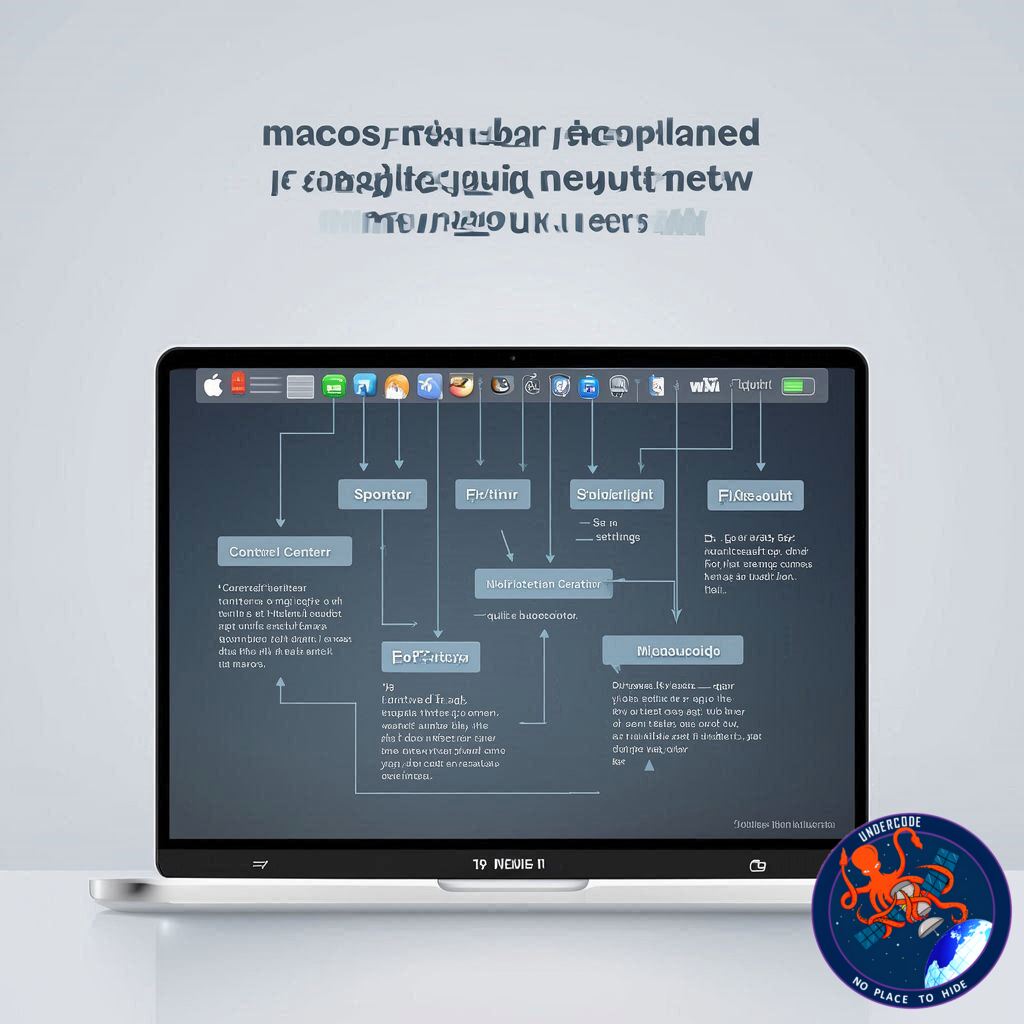
Introduction: Understanding Apple’s Unique Control System
For users transitioning into the Apple ecosystem, especially with devices like the MacBook Neo, macOS can feel both familiar and strangely different at the same time. While many core functions resemble what Windows users already know, one standout feature often causes initial confusion: the menu bar. Unlike traditional Windows layouts, Apple centralizes app controls and system indicators into a single strip that sits permanently at the top of the screen. This design is not just aesthetic, it represents a different philosophy of interaction, one focused on consistency, minimalism, and efficiency. Once understood, the macOS menu bar becomes one of the most powerful and intuitive tools in the operating system.
The Core Concept of the macOS Menu Bar
At its simplest, the menu bar is a horizontal control strip located at the very top of your Mac’s display. It is divided into two primary sections: app-specific menus on the left and system status icons on the right. This layout allows users to manage both application controls and system functions without cluttering the workspace.
On the left side, the menu bar dynamically changes depending on which application is currently active. Common options such as File, Edit, and View are always present, but each app introduces its own unique menus. For example, a text editor may include formatting tools, while a music app might feature playback controls. The name of the active application appears next to the Apple logo, making it clear which program the menu options belong to.
The Apple logo itself serves as a gateway to system-wide controls. It provides quick access to essential features such as restarting, shutting down, or opening system settings. This centralized control approach ensures that users can manage their device without navigating away from their current task.
The Right Side: Status Indicators and Quick Controls
On the right side of the menu bar lies a collection of status icons that function similarly to the Windows taskbar. These include the date and time, battery level, Wi-Fi status, and search tools. This section acts as a real-time dashboard for your system.
One of the most important components here is the Control Center, represented by a toggle-style icon. It offers quick access to commonly used settings like Bluetooth, Wi-Fi, AirDrop, screen brightness, and volume. It also displays active media playback and allows users to adjust system preferences without opening separate applications.
Another key feature is the Notification Center, accessible by clicking the date and time. This area stores recent alerts and widgets, helping users stay informed without interrupting their workflow.
Privacy Indicators and Security Awareness
A subtle yet crucial feature of the menu bar is its privacy indicator system. Small colored dots appear when sensitive hardware components are in use. An orange dot signals microphone activity, a green dot indicates camera usage, and a purple dot shows when system audio is being recorded.
These indicators are designed to enhance user awareness and security. While they often appear during normal activities like video calls, unexpected appearances may signal unauthorized access. In such cases, running a system scan is a recommended precaution.
macOS vs Windows 11: A Different Philosophy
The difference between macOS and Windows becomes especially clear when comparing how each system handles application controls. In Windows 11, every application window contains its own menu and control bar. Each window operates independently, which can lead to a more fragmented experience.
macOS, on the other hand, uses a single, unified menu bar that updates based on the active application. This means users only ever interact with one control strip, reducing visual clutter and creating a more streamlined workflow.
Another key difference lies in how applications close. In Windows, clicking the close button typically shuts down the entire app. In macOS, closing a window does not necessarily quit the application. The app remains active until explicitly closed using a command or menu option. This behavior can initially confuse new users but ultimately supports multitasking and faster app switching.
Customizing the Menu Bar for Personal Efficiency
One of the strengths of the macOS menu bar is its flexibility. Users can customize which icons appear, how they behave, and even their arrangement. Through System Settings, users can add or remove status indicators, adjust visibility options, and control how information is displayed.
The menu bar can also be set to automatically hide and reappear when needed, maximizing screen space. Users can rearrange icons by holding a keyboard command and dragging them into position. Removing icons is just as simple, making customization both intuitive and quick.
Additionally, the Control Center can be modified to include preferred tools and shortcuts. Users can drag controls in and out, tailoring the interface to match their workflow. This level of personalization ensures that the menu bar adapts to individual needs rather than forcing a fixed layout.
What Undercode Say:
The macOS menu bar is more than just a design choice, it reflects Apple’s long-standing philosophy of reducing complexity through centralization. While Windows prioritizes flexibility through multiple independent windows, Apple takes the opposite route by consolidating control into a single, always-accessible interface. This approach minimizes cognitive load, especially for users who juggle multiple applications simultaneously.
From a usability perspective, the menu bar reduces redundancy. Instead of repeating controls in every window, macOS ensures that users always know where to look. This consistency builds muscle memory quickly, which is why experienced Mac users often navigate faster than their Windows counterparts.
However, this design is not without trade-offs. New users, particularly those migrating from Windows, may initially struggle with the separation between app windows and controls. The concept of an application remaining active even after closing its window can feel unintuitive. Yet, this behavior aligns with macOS’s emphasis on background efficiency and seamless multitasking.
The inclusion of privacy indicators is another significant advancement. In an era where digital security is a growing concern, these small visual cues provide immediate transparency. Unlike traditional systems that rely on hidden permissions, macOS brings potential risks directly into the user’s line of sight.
Customization also plays a critical role in the menu bar’s effectiveness. By allowing users to control which elements appear and how they behave, Apple ensures that the interface can evolve with user preferences. This adaptability transforms the menu bar from a static feature into a dynamic productivity tool.
Looking forward, the influence of the macOS menu bar is already visible in other platforms. Microsoft’s experimentation with similar concepts suggests a broader industry shift toward unified control systems. If this trend continues, the macOS menu bar may serve as a blueprint for future operating system design.
Ultimately, the menu bar represents a balance between simplicity and power. It may appear minimal at first glance, but beneath its clean design lies a highly functional system that rewards familiarity and exploration.
Fact Checker Results
✅ The macOS menu bar dynamically changes based on the active application.
✅ Closing a window in macOS does not always quit the application.
❌ Windows 11 does not natively use a single unified menu bar like macOS.
Prediction
📊 Apple will further integrate AI-driven shortcuts into the menu bar for predictive actions.
📊 Competing operating systems may adopt unified control bars inspired by macOS design.
📊 The menu bar could evolve into a central hub for cross-device synchronization and automation.
▶️ Related Video (84% Match):
🕵️📝✔️Let’s dive deep and fact‑check.
References:
Reported By: www.techradar.com
Extra Source Hub (Possible Sources for article):
https://www.digitaltrends.com
Wikipedia
OpenAi & Undercode AI
Image Source:
Unsplash
Undercode AI DI v2
Bing
🔐JOIN OUR CYBER WORLD [ CVE News • HackMonitor • UndercodeNews ]
📢 Follow UndercodeNews & Stay Tuned:
𝕏 formerly Twitter 🐦 | @ Threads | 🔗 Linkedin | 🦋BlueSky | 🐘Mastodon


