
Listen to this Post
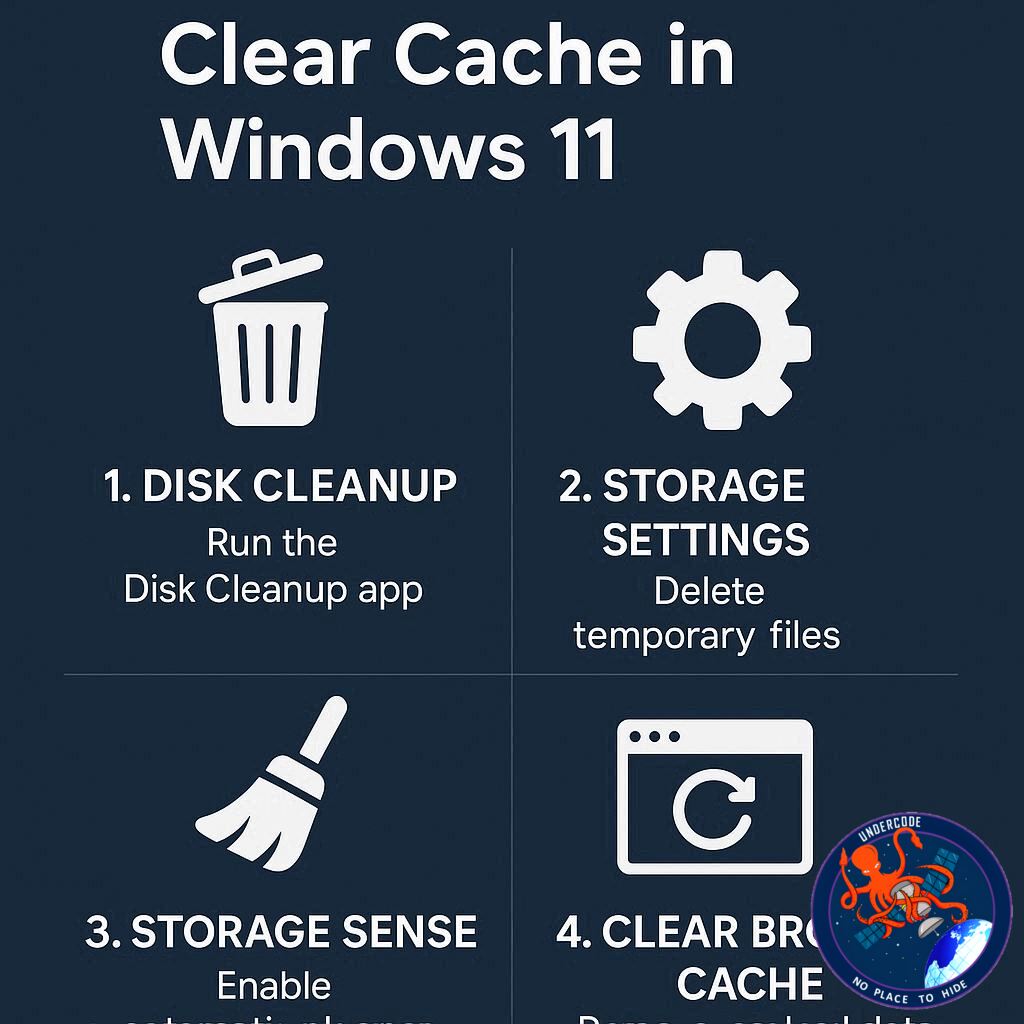
Keeping your computer fast and clutter-free is not just about having powerful hardware — it’s about proper maintenance. Windows 11, like any modern operating system, constantly stores cache and temporary files in the background. While these files can speed up certain tasks, they often pile up, become corrupted, and eventually slow down your system. Clearing them regularly can restore speed, improve stability, and even free up valuable storage space. Fortunately, Microsoft has built-in tools that make this process quick and safe.
A Quick How to Clear Cache in Windows 11
Windows 11 users experiencing lag, cluttered desktops, or slow boot times can improve performance by clearing cache files and other temporary data. The first step, however, is ensuring your PC is fully updated since many issues are solved by system patches. If updates don’t help, Microsoft provides several utilities designed to optimize disk space.
One of the most convenient tools is Cleanup Recommendations, found under Settings > System > Storage. This feature highlights files in the Recycle Bin, Downloads folder, and unused apps that you may want to delete. For many users, this step alone can recover several gigabytes of storage. Windows also flags large or unused files like videos and images, though users should review them carefully before deleting.
Another option is the Disk Cleanup utility, which works across all Windows versions. Accessible by searching “Disk Cleanup” in the search bar, it scans for temporary internet files, setup logs, and other unnecessary data. Users can select which categories to clear with a simple click.
Windows 11 also stores a location cache when syncing in new places. Clearing it is easy via Settings > Privacy and Security > Location history > Clear. For internet-related slowdowns, flushing the DNS cache can sometimes help. This requires running a simple command: pressing Windows + R, typing ipconfig/flushdns, and hitting Enter.
While these steps may seem minor, they collectively prevent sluggish performance, extend system longevity, and reduce file bloat. Regular maintenance ensures a smoother, more responsive Windows experience.
What Undercode Say:
Cache buildup is one of the most underestimated reasons behind system slowdowns. People often jump to expensive fixes like adding more RAM or even replacing their laptops when the real problem lies in neglected maintenance. Windows 11 provides powerful tools that, if used consistently, can delay the need for costly upgrades.
The Cleanup Recommendations feature is essentially Microsoft’s attempt to simplify disk hygiene for everyday users. By surfacing files and apps most people forget about, it prevents storage creep. However, users need to be cautious — deleting items from the Downloads folder without checking could mean losing important installers or documents.
The Disk Cleanup utility may feel old-school, but it’s still one of the most effective and reliable tools. Unlike third-party cleaners that often overpromise and sometimes harm system files, Disk Cleanup targets safe-to-delete data. This makes it an underrated gem for anyone wary of installing “optimizer” apps that usually bloat the system more than they help.
The DNS flush deserves special mention. Many users blame their ISPs or routers for sluggish browsing speeds, when in reality, outdated or corrupted DNS records on their PC are the root cause. Flushing the DNS resets the lookup process, often giving instant improvements to web performance without changing providers or hardware.
Another angle worth discussing is cybersecurity. Temporary files and caches can store sensitive traces like browsing data or location history. Leaving them unchecked increases exposure if malware or unauthorized access occurs. Regular cleanup, therefore, isn’t just about speed — it’s also about privacy protection.
From a long-term perspective, users who cultivate habits like monthly cleanups, monitoring unused apps, and running updates on time extend their PC’s effective lifespan. It’s cheaper and smarter than rushing into hardware upgrades every few years. In fact, I’d argue that good digital hygiene is the “exercise and diet” equivalent for your PC: not glamorous, but absolutely essential.
So, while Windows 11 is a robust system, it still relies on users being proactive. Treat your PC like a car — it runs smoother and lasts longer with routine tune-ups. Clearing cache is one of the easiest, yet most overlooked, forms of maintenance. Ignore it, and you’ll eventually feel the drag; stay consistent, and your computer will reward you with stability and speed.
🔍 Fact Checker Results
✅ Windows 11 has built-in tools like Cleanup Recommendations and Disk Cleanup to safely remove cache.
✅ Flushing DNS cache can indeed improve browsing speed in some cases.
❌ Clearing cache does not fix deep hardware issues or replace the need for updates.
📊 Prediction
As Windows 11 evolves, Microsoft will likely automate more of these cleanup processes in future updates, reducing manual effort for users. However, proactive users who already adopt regular cache-clearing habits will continue to enjoy faster performance, better security, and longer-lasting hardware compared to those who neglect maintenance. In the coming years, digital hygiene will be viewed less as optional and more as an essential part of personal computing.
🕵️📝✔️Let’s dive deep and fact‑check.
References:
Reported By: www.zdnet.com
Extra Source Hub:
https://www.discord.com
Wikipedia
OpenAi & Undercode AI
Image Source:
Unsplash
Undercode AI DI v2
🔐JOIN OUR CYBER WORLD [ CVE News • HackMonitor • UndercodeNews ]
📢 Follow UndercodeNews & Stay Tuned:
𝕏 formerly Twitter 🐦 | @ Threads | 🔗 Linkedin | 🦋BlueSky | 🐘Mastodon


