
Listen to this Post
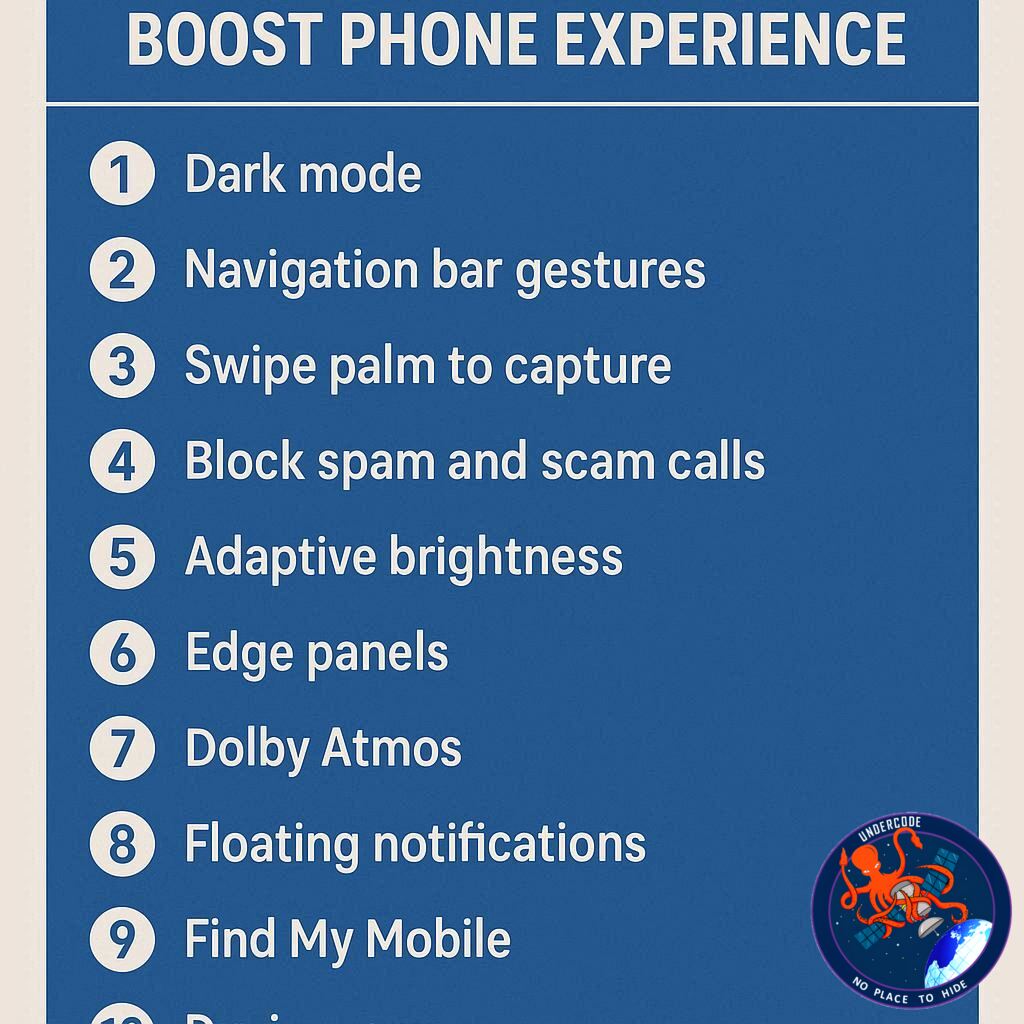
Samsung’s One UI 7 is widely regarded as one of the smoothest, most polished Android skins available today. But even the best software out of the box isn’t fully optimized for you. To get the best experience, you need to tweak certain settings — and in the case of Samsung phones, a few small adjustments can dramatically improve performance, usability, and overall enjoyment.
Whether you’re rocking the latest Galaxy S25 Ultra or another model in the lineup, changing these settings will make your phone feel faster, more personalized, and less cluttered. From removing annoying pop-up notifications to unlocking the highest display resolution, these tips can transform your Galaxy device into a streamlined productivity and entertainment machine.
the Original
Samsung’s One UI 7 delivers speed, responsiveness, and an intuitive interface, but personalization is key to maximizing its potential. The author recommends 10 main setting changes (plus a bonus) that dramatically improve daily usability.
- Turn off pop-up notifications – Disables distracting message pop-ups while multitasking.
- Switch to gesture navigation – Replaces the old three-button system with faster, swipe-based controls.
- Set highest screen resolution – Unlocks QHD+ display for maximum sharpness on models like the Galaxy S25 Ultra.
- Change side key function – Restores long-press power menu instead of triggering Bixby or Gemini.
- Adjust lock screen notifications – Restores card-style layout and hides sensitive content.
- Sign in for a Samsung account – Enables features like Galaxy Themes, Samsung Wallet, and seamless data transfer.
- Install Good Lock app – Adds advanced customization tools, including one-handed operation gestures.
- Remove bloatware – Uninstalls or disables unused apps like Facebook, OneDrive, or CoPilot.
- Customize home screen – Uses transparent widgets, a 5×5 icon grid, and wallpaper-matched app icons.
- Fix Always-On Display – Keeps time/date visible at all times for quick reference.
Bonus: Revert notification panel design to the older unified layout.
The author notes additional small tweaks like using Google Keyboard and sorting the app drawer alphabetically for better navigation. Together, these changes make Samsung devices more efficient, less distracting, and visually pleasing.
What Undercode Say:
Samsung’s approach with One UI 7 is a prime example of how a manufacturer can make Android feel both premium and user-friendly. However, it’s also a reminder that “default settings” aren’t designed for your specific needs — they’re designed to suit the widest audience possible. The real magic happens when you tailor the experience.
Disabling pop-up notifications may seem minor, but it’s a huge productivity boost. For professionals, gamers, or anyone easily distracted, eliminating these interruptions allows you to focus without losing your workflow.
Switching to gesture navigation isn’t just a style choice — it frees up screen space, makes one-handed use easier, and speeds up navigation once you adapt. Combined with the highest resolution setting, you’ll feel like you’re truly using a flagship device. Yes, it eats more battery, but on devices like the S25 Ultra, efficiency gains from the Snapdragon 8 Gen 4 and optimized AMOLED panels make this a non-issue.
The side key change is one of the most underrated tips here. Many users rarely use Bixby or Gemini via long press, yet they’re stuck with it. Restoring the power menu gives you instant access to shutdown and restart — essential for troubleshooting or quick resets.
Lock screen customization isn’t just cosmetic; hiding sensitive content is a real privacy upgrade. With more people using mobile payments and multi-factor authentication codes, protecting that information is critical.
A Samsung account unlocks deep integration with the Galaxy ecosystem — something casual users overlook. Between Samsung Wallet, Smart Switch, and exclusive Galaxy Store content, it makes device switching and feature access seamless.
The Good Lock app is a game-changer for power users. It’s essentially an advanced customization toolkit that can turn your Galaxy into a uniquely personal device — something iOS simply can’t match.
Removing bloatware is non-negotiable. Samsung has improved in recent years, but third-party apps you don’t use still take storage and can run background processes. Removing them improves speed and battery life.
Home screen adjustments make navigation more intuitive. A transparent Calendar widget and 5×5 icon grid maximize functionality without clutter. Wallpaper color matching brings visual consistency, which might seem small but contributes to overall satisfaction.
Lastly, enabling the Always-On Display is about convenience. With Samsung’s power-efficient AMOLED panels, you can keep essential info visible all day without killing your battery.
The bonus notification panel revert is a nod to muscle memory. While iOS-inspired designs appeal to some, long-time Galaxy users appreciate the old unified panel’s familiarity.
Overall, these tweaks are a perfect example of how a few thoughtful changes can turn a “good” device into an outstanding one.
🔍 Fact Checker Results
✅ One UI 7 indeed uses a mix of Samsung and Android default settings that can be altered for personalization.
✅ Good Lock is an official Samsung app, available only via the Galaxy Store.
✅ Higher screen resolutions consume more battery but are supported efficiently by modern Samsung flagship hardware.
📊 Prediction
As Samsung continues refining One UI, future releases will likely integrate some of these “manual tweaks” into the initial setup process. We can expect more AI-assisted personalization — where the phone automatically suggests layout, display, and privacy settings based on user habits — eliminating the need for deep menu digging. However, advanced customization tools like Good Lock will remain a favorite among power users, ensuring Samsung retains its edge in flexibility over Apple’s iOS.
🕵️📝✔️Let’s dive deep and fact‑check.
References:
Reported By: www.zdnet.com
Extra Source Hub:
https://www.quora.com/topic/Technology
Wikipedia
OpenAi & Undercode AI
Image Source:
Unsplash
Undercode AI DI v2
🔐JOIN OUR CYBER WORLD [ CVE News • HackMonitor • UndercodeNews ]
📢 Follow UndercodeNews & Stay Tuned:
𝕏 formerly Twitter 🐦 | @ Threads | 🔗 Linkedin | 🦋BlueSky | 🐘Mastodon


