
Listen to this Post
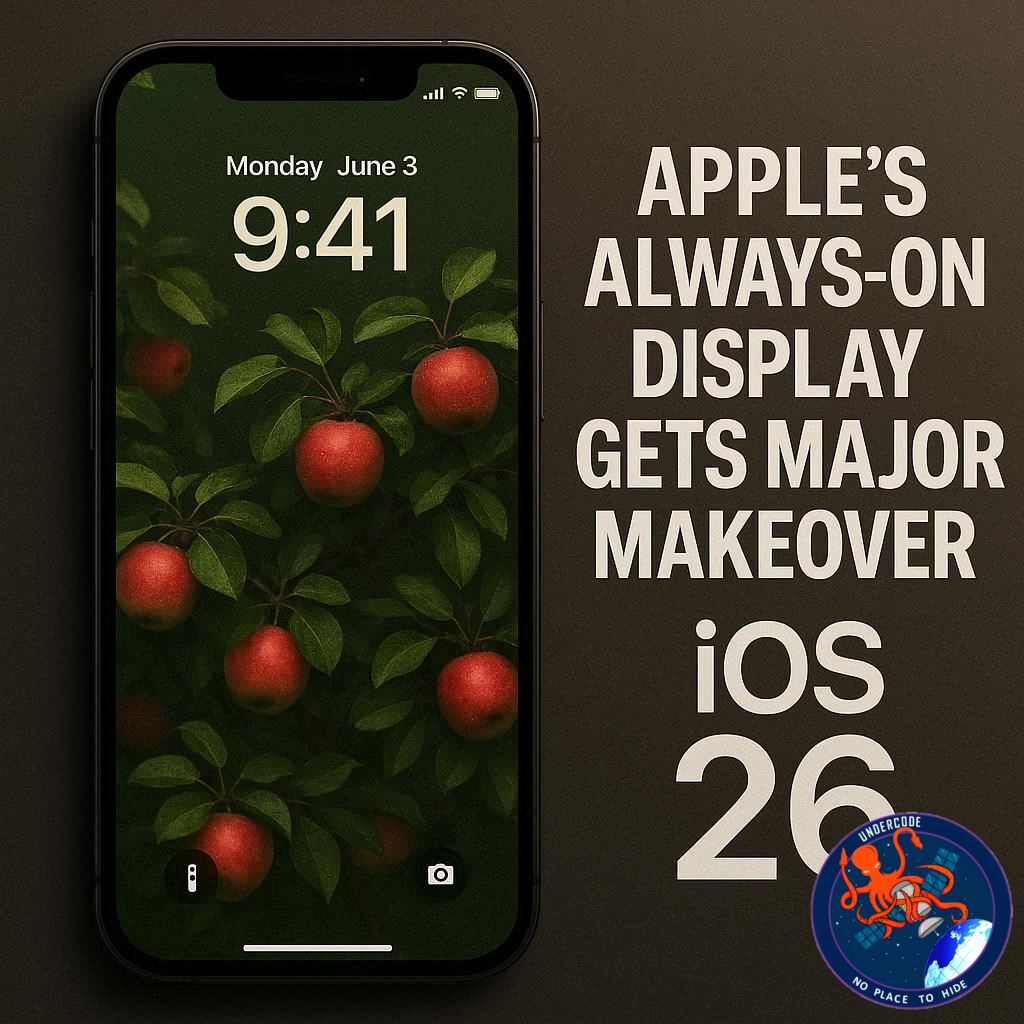
Apple’s Always-On Display (AOD) has been a subtle yet powerful feature on the iPhone since the debut of the iPhone 14 Pro. It allows users to glance at the time, date, notifications, and widgets without unlocking their device. With the release of iOS 26, Apple has quietly introduced changes that tweak how this feature works, making it more visually distinct but also altering the way your Lock Screen looks. Here’s a deep dive into the update and what it means for your iPhone experience.
Understanding the Always-On Display
Since its introduction, the Always-On Display has primarily functioned by dimming the Lock Screen wallpaper while keeping essential information visible. Users could quickly check the clock, notifications, date, and widgets without interacting with their phone. The feature also automatically turns off in certain scenarios, such as when the iPhone is face down, in Low Power Mode, while using CarPlay, or during Sleep Focus hours.
iOS 26 Brings a Subtle but Noticeable Change
In iOS 26, Apple shifted from simply dimming the wallpaper to blurring it by default when the display is in Always-On mode. This small change has a noticeable impact: while it improves legibility for the clock and widgets, it reduces the prominence of your chosen Lock Screen wallpaper. For users who value aesthetics and personal images on their Lock Screen, this might feel like a compromise.
Customization Remains Key
Thankfully, Apple included a toggle to revert to the previous behavior. Users can navigate to Settings > Display & Brightness > Always On Display to disable the blurred wallpaper effect, restoring full clarity to the Lock Screen. This means you can choose between a cleaner, utility-driven display or one that retains the personality of your wallpaper.
Balancing Privacy and Aesthetics
The blurring effect may also offer subtle privacy benefits. By softening the Lock Screen image, it makes personal photos less visible to onlookers while still showing the time, date, and widgets. However, for users who prefer a vivid and personalized display, the change might feel counterproductive.
Historical Context: iOS 18 and Beyond
Interestingly, the overall functionality of Always-On Display hasn’t drastically changed since iOS 18. The screen dims, provides quick information, and turns off in certain conditions. The primary evolution with iOS 26 lies in visual presentation rather than core utility, signaling Apple’s continued focus on balancing usability with aesthetics.
What Undercode Says:
Enhanced Readability vs. Wallpaper Clarity
The blurring in iOS 26 improves the readability of text, clock, and widgets, which can be especially helpful in bright environments. However, it compromises the visual appeal of wallpapers, which is a significant consideration for users who personalize their Lock Screen images.
User Control Is Critical
Apple’s inclusion of a toggle demonstrates an understanding of user preferences. Giving the option to disable blurring ensures that individuals can maintain the aesthetic integrity of their Lock Screen while still benefiting from Always-On Display functionality.
Privacy Considerations
Blurring wallpapers adds an extra layer of privacy for casual onlookers. Sensitive images or personal information on the Lock Screen become less discernible, making it a thoughtful addition for users concerned about accidental exposure.
Continuity and Functionality
Always-On Display remains consistent in functionality: dimmed or blurred Lock Screen, visible essentials, and automatic turn-off in specific conditions. iOS 26 subtly modernizes the feature without disrupting its core purpose, showing Apple’s commitment to incremental design improvements.
Impact on User Experience
While some may feel frustrated by the default blur, the option to revert empowers users. Those who enjoy minimalism or enhanced readability may appreciate the default change, while enthusiasts who prioritize Lock Screen visuals can maintain their preferred look.
Technical Optimizations
Blurring may also help optimize battery usage subtly. By rendering a less detailed background during Always-On mode, the system may consume slightly less power than displaying a high-resolution wallpaper, though the impact is likely minimal.
Adaptation Across Devices
The change is particularly relevant for iPhone 14 Pro users and beyond, as these devices have the hardware to support Always-On Display efficiently. Users of older devices won’t notice this functionality, keeping the focus on newer hardware.
User Feedback and Preferences
Early adopters have reported mixed reactions: some welcome improved legibility, while others miss the personal touch of clear wallpapers. Apple’s flexible approach allows it to satisfy both camps, which could reduce friction among iPhone enthusiasts.
Aesthetic vs. Utility Trade-Off
iOS 26 emphasizes utility over pure aesthetics by default. This aligns with Apple’s broader trend of prioritizing functional enhancements while still offering users control over visual personalization.
Forward-Looking Considerations
Given Apple’s incremental updates, future iterations may introduce even more customization options, such as selective blurring or adaptive visuals based on context or ambient lighting.
🔍 Fact Checker Results
✅ iOS 26 blurs Always-On Display wallpapers by default.
✅ Users can toggle the blur off in Settings > Display & Brightness > Always On Display.
✅ Functionality otherwise remains similar to previous iOS versions, including dimming and automatic turn-off conditions.
📊 Prediction
Apple is likely to continue refining Always-On Display aesthetics and functionality in future iOS updates. Expect more granular control options, such as adaptive blur levels, contextual visibility, or dynamic personalization based on time of day. This balance between privacy, usability, and aesthetic appeal could make Always-On Display an even more essential feature for iPhone users, further distinguishing Apple from competitors in the premium smartphone space.
🕵️📝✔️Let’s dive deep and fact‑check.
References:
Reported By: 9to5mac.com
Extra Source Hub (Possible Sources for article):
https://www.discord.com
Wikipedia
OpenAi & Undercode AI
Image Source:
Unsplash
Undercode AI DI v2
Bing
🔐JOIN OUR CYBER WORLD [ CVE News • HackMonitor • UndercodeNews ]
📢 Follow UndercodeNews & Stay Tuned:
𝕏 formerly Twitter 🐦 | @ Threads | 🔗 Linkedin | 🦋BlueSky | 🐘Mastodon


