
Listen to this Post
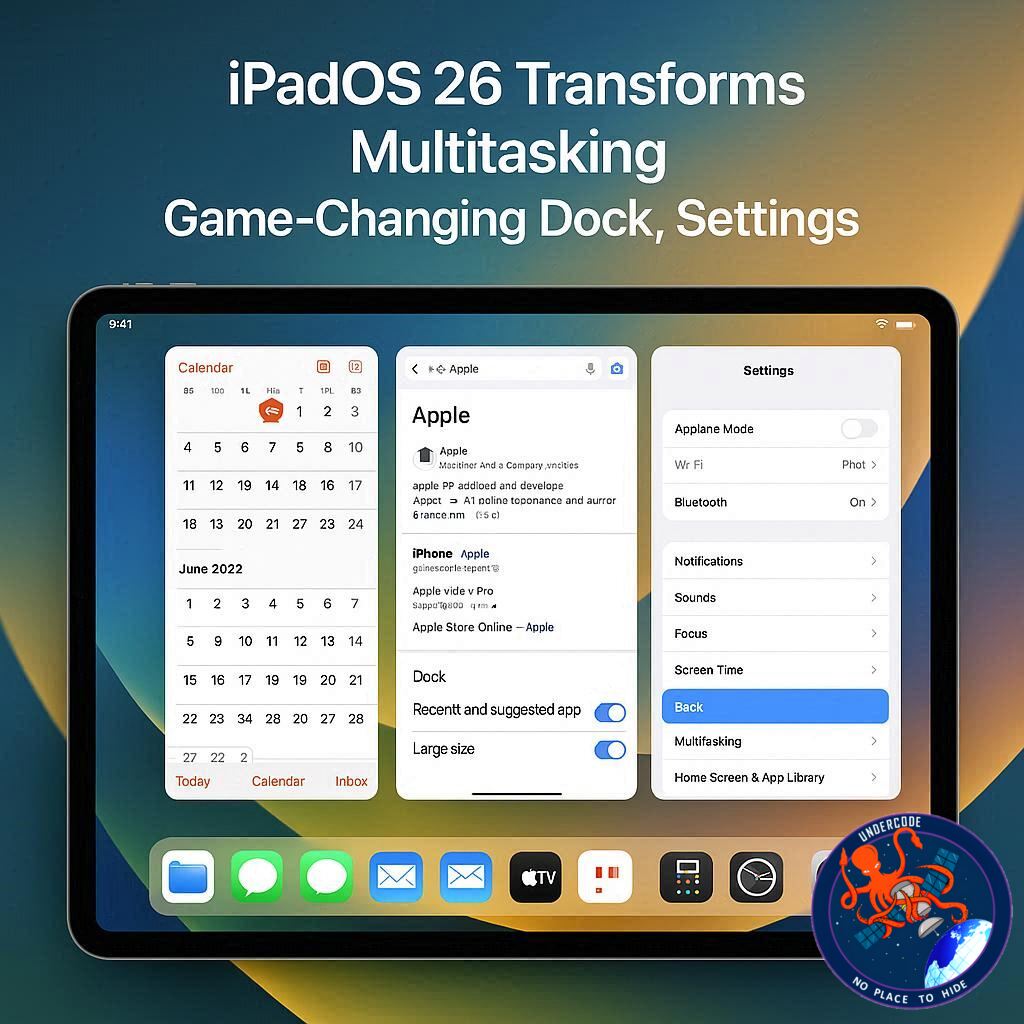
Apple has just taken iPad multitasking to a whole new level with iPadOS 26, introducing a windowing system that finally makes the iPad feel more like a Mac. The update brings overlapping, resizable windows, a new menu bar, and an option that lets the dock behave in a way that’s closer to macOS than ever before. But for users like me, the real magic happens with a single toggle in Settings that changes how the dock appears when working in apps. This small adjustment can transform your workflow, making app switching smoother and your iPad experience far more desktop-like.
iPadOS 26’s New Windowing System
With iPadOS 26, apps are no longer confined to full-screen views or rigid split screens. The new windowing system allows windows to overlap, resize, and move freely—finally delivering what Stage Manager attempted but fell short on. Alongside this, Apple has added a menu bar reminiscent of macOS, offering a more consistent and familiar desktop experience.
Automatically Show and Hide Dock: A Game-Changer
The standout addition, however, is the “Automatically Show & Hide Dock” toggle in Settings → Multitasking & Gestures. On macOS, this toggle controls whether the dock is always visible or hides automatically, but on iPadOS, it behaves slightly differently. By enabling this option, the dock remains visible while using apps, provided two simple rules are followed:
The app window cannot be full-screen.
The app window must avoid occupying the bottom area where the dock resides.
When these conditions are met, the dock stays visible, allowing faster app switching and better access to folders from the Files app.
Resizing Windows Enhances Workflow
For me, resizing app windows to accommodate the dock has dramatically improved multitasking. I can now move between apps quickly, keep important tools accessible, and enjoy a more fluid workflow—much like on a Mac. This small adjustment has arguably made iPadOS 26 feel more like a desktop OS than ever before.
Best iPad Accessories to Complement Your Setup
AirPods Pro 3 – now $209 (down from $249)
100W USB-C Power Adapter – fast charging made easy
tomtoc Tablet Sleeve Bag – protection meets style
Baseus 10ft USB-C Cable – extended reach for versatile setups
Apple Pencil Pro – now $95 (down from $129)
What Undercode Says:
Multitasking Reimagined
iPadOS 26 doesn’t just tweak multitasking—it reinvents it. The windowing system provides flexibility long requested by power users, removing constraints of full-screen apps and rigid split screens. This approach signals Apple’s commitment to bridging the gap between tablet and desktop productivity.
Dock Visibility: Small Feature, Big Impact
The “Automatically Show & Hide Dock” toggle might seem minor, but its impact is outsized. Keeping the dock visible during app usage mirrors macOS behavior, allowing users to treat the iPad as a true multitasking machine. Workflow efficiency improves because you no longer need to invoke gestures repeatedly.
Strategic Window Placement
Users will need to rethink window placement to maximize this feature. Windows must avoid overlapping the dock, which subtly encourages more organized multitasking. While it adds a minor learning curve, the productivity benefits outweigh the inconvenience.
Integration With Files and Apps
The dock’s ability to hold folders from the Files app complements this change perfectly. Users can drag and drop files, open documents faster, and maintain a consistent workflow without interruptions.
Mac-Like Experience
Overall, iPadOS 26 narrows the gap between tablet and desktop computing. Features like overlapping windows, a menu bar, and a visible dock make the iPad feel less like a limited mobile device and more like a versatile productivity tool. For professionals, creatives, and multitaskers, these small tweaks make a huge difference in daily use.
Potential Challenges
While the update is promising, some users may encounter adjustment hurdles, particularly when managing window sizes and dock visibility in apps that naturally push toward full-screen layouts. Power users will need to experiment with resizing to fully leverage the dock’s visibility.
🔍 Fact Checker Results
✅ iPadOS 26 introduces a new windowing system allowing resizable and overlapping windows.
✅ The “Automatically Show & Hide Dock” setting keeps the dock visible under specific conditions.
❌ The dock does not remain visible if the app is full-screen or overlaps the bottom screen area.
📊 Prediction
iPadOS 26’s dock improvements and windowing flexibility will likely increase adoption among power users and professionals, positioning the iPad as a true Mac alternative for productivity. Over the next year, we can expect app developers to optimize their interfaces for multitasking, while accessory sales—like Apple Pencil, USB-C adapters, and tablet sleeves—will see a boost as users create more desktop-like setups.
If you want, I can also create a visual diagram showing the ideal dock and window placement for iPadOS 26, which would make the article even more engaging. Do you want me to do that?
🕵️📝✔️Let’s dive deep and fact‑check.
References:
Reported By: 9to5mac.com
Extra Source Hub (Possible Sources for article):
https://www.quora.com
Wikipedia
OpenAi & Undercode AI
Image Source:
Unsplash
Undercode AI DI v2
Bing
🔐JOIN OUR CYBER WORLD [ CVE News • HackMonitor • UndercodeNews ]
📢 Follow UndercodeNews & Stay Tuned:
𝕏 formerly Twitter 🐦 | @ Threads | 🔗 Linkedin | 🦋BlueSky | 🐘Mastodon


