
Listen to this Post
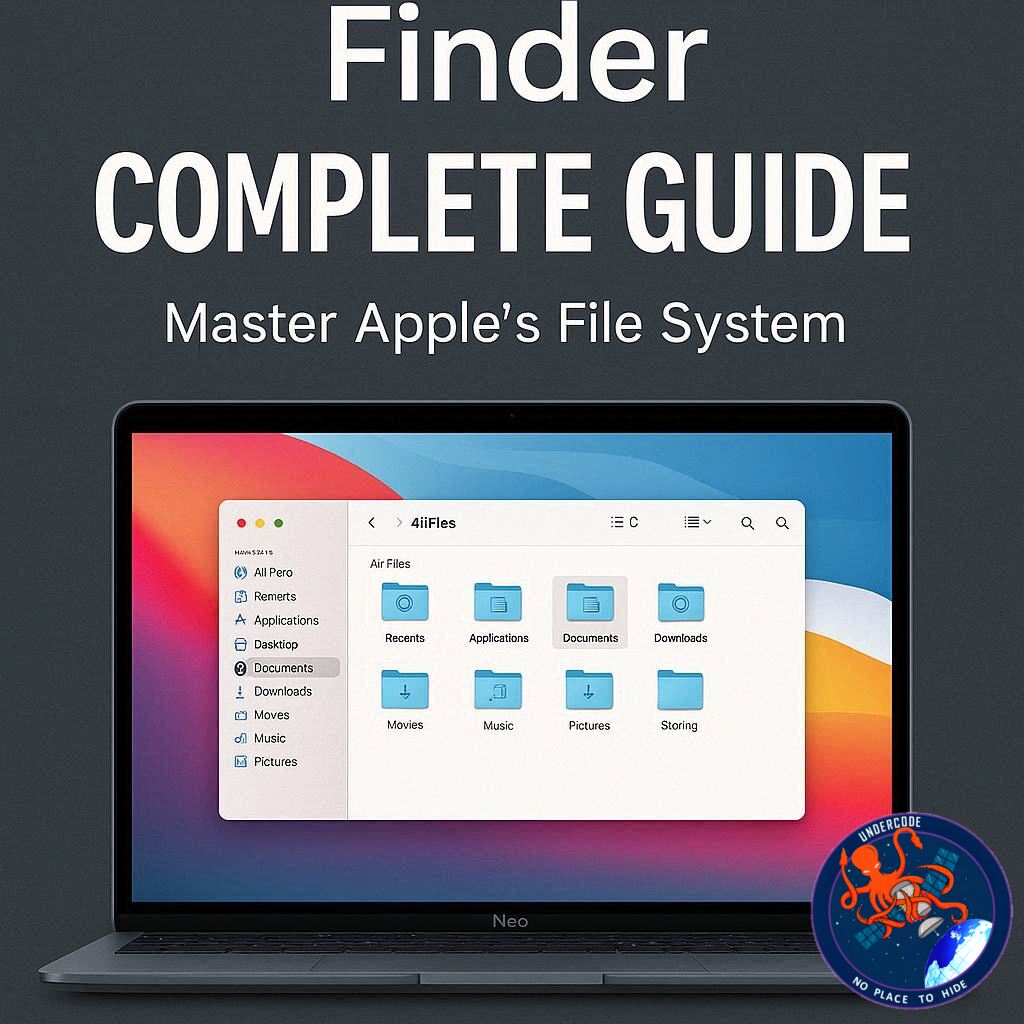
Introduction: Understanding the Heart of macOS File Management
Switching to a new MacBook Neo can feel both exciting and slightly overwhelming, especially when navigating an unfamiliar operating system. At the center of this experience sits the macOS Finder, a tool that quietly powers everything you do with files. While it may look simple at first glance, Finder is far more than just a digital filing cabinet. It is a deeply integrated system that blends accessibility with advanced control, allowing users to organize, preview, customize, and transfer files with remarkable efficiency. For anyone coming from a Windows background, Finder may feel familiar, yet it introduces its own logic and hidden capabilities that can dramatically improve productivity once understood.
Core Overview of Finder Features and Interface
The Finder is Apple’s default file management system, permanently located in the Dock and represented by its iconic blue smiling face. Opening it reveals a structured interface divided into three primary areas: the sidebar, toolbar, and main content window. The sidebar provides quick access to frequently used locations such as Applications, Desktop, and Downloads, while the main window displays files and folders. The toolbar offers controls for organizing and customizing how content appears.
Users can switch between multiple viewing modes, including Icons, List, Columns, and Gallery. Each serves a different purpose, whether visual browsing or detailed sorting. Files can be grouped by name, type, or modification date, making organization flexible and intuitive. Creating folders is straightforward through right-click options or keyboard shortcuts, and renaming them is just as simple.
File movement in Finder relies heavily on drag-and-drop functionality. By default, dragging moves files, while copying requires keyboard commands. Selecting multiple files is efficient through Command or Shift keys, enabling batch actions. Finder also includes Quick Look, a powerful preview feature activated by pressing the space bar, allowing users to inspect files without opening them fully.
Beyond basic organization, Finder introduces Smart Folders, which automatically collect files based on defined criteria. Tags provide another layer of organization, allowing files to be labeled and easily retrieved through search or sidebar filters. Tabs enable multiple Finder views within a single window, improving workflow without cluttering the desktop.
Customization plays a major role in Finder’s appeal. Users can modify folder colors, add symbols or emojis, and even overlay images onto folder icons. The toolbar and sidebar can be rearranged or hidden entirely, adapting the interface to individual preferences. These features make Finder not just functional, but highly personal.
Advanced file handling includes duplication shortcuts, precise drag options using modifier keys, and the ability to move entire folder contents efficiently. Finder also integrates seamlessly with other Apple devices, allowing file synchronization with iPhones and iPads directly from the sidebar.
Compared to Windows File Explorer, Finder shares many similarities but differs in navigation structure and terminology. Features like aliases function similarly to shortcuts, while path visibility and folder navigation are handled differently. Despite these differences, the transition between systems is relatively smooth.
Ultimately, Finder balances simplicity and depth. Beginners can rely on its intuitive interface, while advanced users can unlock powerful tools that streamline file management across the entire Apple ecosystem.
Advanced Customization and Workflow Optimization in Finder
One of Finder’s strongest advantages lies in its adaptability. The sidebar can be fully customized by dragging folders, apps, or files into the Favorites section, creating a personalized workspace tailored to daily tasks. Removing or rearranging items is equally simple, giving users full control over navigation.
The toolbar can also be modified extensively. Buttons can be added, removed, or repositioned, allowing quick access to frequently used functions. Even the visibility of the toolbar itself can be toggled, offering a minimalist or feature-rich interface depending on user preference.
View settings can be standardized across all folders. By adjusting display options and applying them as defaults, users ensure consistency throughout their system. This is particularly useful for professionals managing large volumes of files.
Finder’s Smart Folders represent a shift toward automation. Instead of manually sorting files, users define conditions, and Finder dynamically updates the folder contents. This reduces repetitive tasks and improves efficiency, especially for creative or technical workflows.
Tagging introduces a visual and searchable layer of organization that goes beyond traditional folder structures. By combining tags with search filters, users can locate files instantly, regardless of their physical location on the system.
Another overlooked strength is Finder’s preview system. The ability to view file contents, metadata, and even edit certain elements without opening separate applications significantly reduces friction in everyday tasks.
Integration with Apple devices enhances Finder’s role as a central hub. Connecting an iPhone or iPad transforms Finder into a synchronization tool, enabling seamless file transfers and backups. This ecosystem connectivity is a defining feature that sets Finder apart from many competitors.
Even small details, such as snapping icons to a grid or customizing folder visuals, contribute to a more organized and visually intuitive workspace. These elements may seem minor individually, but collectively they create a smoother, more efficient user experience.
What Undercode Say:
Finder represents a philosophy shift rather than just a technical tool. While Windows File Explorer focuses on direct navigation and hierarchical clarity, Finder leans into abstraction, visual simplicity, and ecosystem integration. This difference becomes more apparent as users move beyond basic file operations.
The real strength of Finder is not in what it shows immediately, but in what it allows over time. Features like Smart Folders and Tags are not essential for beginners, yet they become indispensable for users handling complex workflows. This layered design ensures that Finder grows with the user instead of overwhelming them from the start.
Another key insight is how Finder reduces dependency on external applications. Quick Look alone eliminates the need to open multiple programs just to preview files. This seemingly small feature reflects a broader design philosophy centered on speed and minimal interruption.
Customization is also more meaningful in Finder than in many competing systems. Instead of cosmetic changes, most adjustments directly impact workflow efficiency. Rearranging the toolbar or sidebar is not just about aesthetics, it is about reducing friction in daily tasks.
However, Finder is not without limitations. Its navigation model can feel restrictive to users accustomed to Windows-style folder trees. The lack of direct folder expansion in the sidebar may initially slow down experienced users. Yet, this design encourages alternative methods like search, tags, and columns, which can ultimately be faster once mastered.
The integration with Apple devices is arguably Finder’s most strategic advantage. In a world where users operate across multiple devices, having a unified file management system creates a seamless experience that competitors struggle to replicate.
From a productivity standpoint, Finder rewards curiosity. Users who invest time in learning its advanced features often discover that tasks become faster and more intuitive than they were on other systems. This is not because Finder is inherently superior, but because it is designed to align closely with user behavior over time.
In essence, Finder is less about managing files and more about shaping how users interact with their digital environment. It blends structure with flexibility, offering both control and automation in a way that feels natural once understood.
Fact Checker Results
✅ Finder is the default file manager in macOS and is always accessible via the Dock
✅ Smart Folders and Tags are real features that enhance automated file organization
❌ Finder does not fully replicate Windows File Explorer’s navigation tree structure
Prediction
📊 Finder will continue evolving toward automation and AI-assisted organization, reducing manual file sorting
📊 Deeper integration with cloud services and Apple devices will make Finder a central productivity hub
📊 Future macOS updates may simplify navigation further while enhancing advanced customization tools
▶️ Related Video (82% Match):
🕵️📝✔️Let’s dive deep and fact‑check.
References:
Reported By: www.techradar.com
Extra Source Hub (Possible Sources for article):
https://www.quora.com
Wikipedia
OpenAi & Undercode AI
Image Source:
Unsplash
Undercode AI DI v2
Bing
🔐JOIN OUR CYBER WORLD [ CVE News • HackMonitor • UndercodeNews ]
📢 Follow UndercodeNews & Stay Tuned:
𝕏 formerly Twitter 🐦 | @ Threads | 🔗 Linkedin | 🦋BlueSky | 🐘Mastodon


