
Listen to this Post
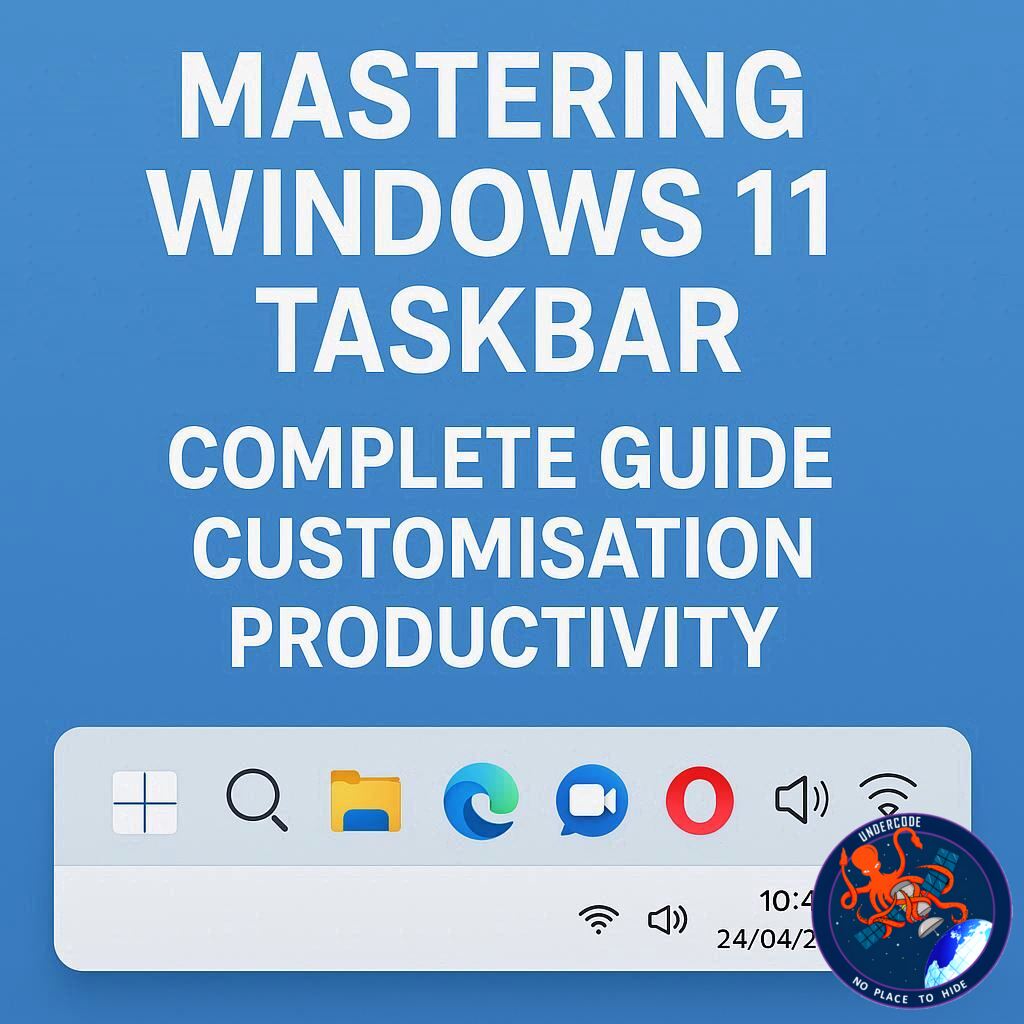
The Windows 11 taskbar is more than just a strip at the bottom of your screen—it’s the central hub for productivity, multitasking, and system control. From launching applications to managing notifications, the taskbar allows users to streamline their workflow and personalise their desktop experience. With powerful customisation options, Windows 11 ensures that your taskbar can work exactly the way you need it to, blending efficiency with convenience. Whether you’re a casual user or a power user, understanding the taskbar’s features is key to unlocking the full potential of your Windows environment.
Understanding the Components of the Taskbar
The Windows 11 taskbar is composed of several interactive elements, each designed for a specific purpose: Widgets, Start menu, Search, Task View, Applications, and the System Tray. Widgets provide dynamic content like news, weather, and reminders, accessible via the taskbar or keyboard shortcuts. The Start menu acts as a central navigation hub for apps, settings, and files, while Windows Search enables fast access to documents, apps, and even web results through Bing. Task View enhances multitasking by showing open windows and virtual desktops, making it easier to switch between projects efficiently.
Pinned applications on the taskbar allow instant access to your most-used programs, with running apps highlighted for visibility. The system tray hosts crucial system icons, including network, volume, and battery status, alongside Quick Settings for toggling Wi-Fi, Bluetooth, and other common functions. The calendar and notification area keeps users informed of updates, emails, and events, while the “Show Desktop” button provides instant access to the desktop.
Customising Your Taskbar Layout
Windows 11 makes taskbar customisation intuitive. You can pin or unpin apps, rearrange their order, and even show or hide system tray icons. Widgets can be toggled on or off, and the taskbar itself can be aligned to the center or left. Taskbar behaviours, such as automatically hiding it when not in use, displaying badges on app icons, or enabling flashing alerts, allow users to fine-tune notifications and workflow efficiency.
For multi-monitor setups, the taskbar can extend across all screens, maintaining consistency. Tablet and 2-in-1 users benefit from a touch-optimised taskbar that collapses when not needed but expands for easy touch interaction. Microsoft Teams integration further enhances productivity by allowing direct window sharing from the taskbar during meetings.
Personalisation Beyond Layout
Beyond structural adjustments, Windows 11 allows users to personalise colours and visual feedback on the taskbar. Accent colours can highlight active apps, while options for showing time, date, and seconds in the system tray improve visibility. The taskbar is not just functional; it can reflect your workflow, aesthetic preference, and even productivity habits.
What Undercode Say:
The Windows 11 taskbar exemplifies how modern operating systems have evolved from simple navigation tools to sophisticated productivity hubs. Its flexibility is remarkable, catering to both traditional desktop users and hybrid 2-in-1 or touch device users. By combining visual customisation with functional behaviour settings, Microsoft has ensured the taskbar is not merely decorative but a vital extension of user workflow.
From an analytical standpoint, the taskbar serves as a real-time productivity dashboard. Widgets offer curated information, reducing the need for additional apps or browser tabs. The Task View function encourages task segmentation, which is crucial for maintaining focus in multitasking environments. Applications’ jump lists, alongside pinned apps, streamline repetitive actions, minimizing friction in routine workflows.
The system tray and Quick Settings area exemplify a balance between accessibility and discretion, providing essential controls without cluttering the workspace. The integration of collaboration features, such as Teams window sharing, signals a shift in operating system design philosophy toward seamless remote and hybrid work productivity.
Importantly, Windows 11’s customisation options indicate a broader trend in user-centric software design. By allowing alignment changes, icon rearrangements, and multi-monitor taskbar support, Microsoft caters to a diverse range of user preferences. Furthermore, subtle features like flashing alerts and badge notifications leverage cognitive cues to improve responsiveness without overwhelming the user.
For businesses and power users, these customisation capabilities can translate into measurable productivity gains. By reducing the number of clicks and optimizing the workflow visually, time spent navigating the system is minimized. For casual users, personalisation improves engagement, making the computing experience more enjoyable and less frustrating.
Overall, the taskbar’s evolution in Windows 11 illustrates the intersection of functionality, aesthetics, and efficiency. Its design encourages a modular approach where users can prioritise the features most relevant to them, whether that’s widgets, multitasking, or quick access to apps. This adaptability is a hallmark of mature software design, reflecting both user feedback and modern computing needs.
Fact Checker Results:
✅ The Windows 11 taskbar allows pinning and rearranging apps.
✅ Widgets provide dynamic content accessible from the taskbar.
❌ The taskbar can be moved to the top of the screen—it is fixed at the bottom.
Prediction:
📊 Moving forward, Microsoft may enhance taskbar integration with AI-driven widgets, offering predictive suggestions based on usage patterns. Expect more seamless multi-device syncing, allowing the taskbar to act as a unified control hub across PCs, tablets, and hybrid devices. Features like advanced notification management and adaptive layouts could further optimize productivity for both individual and enterprise users.
🕵️📝✔️Let’s dive deep and fact‑check.
References:
Reported By: timesofindia.indiatimes.com
Extra Source Hub (Possible Sources for article):
https://www.linkedin.com
Wikipedia
OpenAi & Undercode AI
Image Source:
Unsplash
Undercode AI DI v2
Bing
🔐JOIN OUR CYBER WORLD [ CVE News • HackMonitor • UndercodeNews ]
📢 Follow UndercodeNews & Stay Tuned:
𝕏 formerly Twitter 🐦 | @ Threads | 🔗 Linkedin | 🦋BlueSky | 🐘Mastodon


