
Listen to this Post
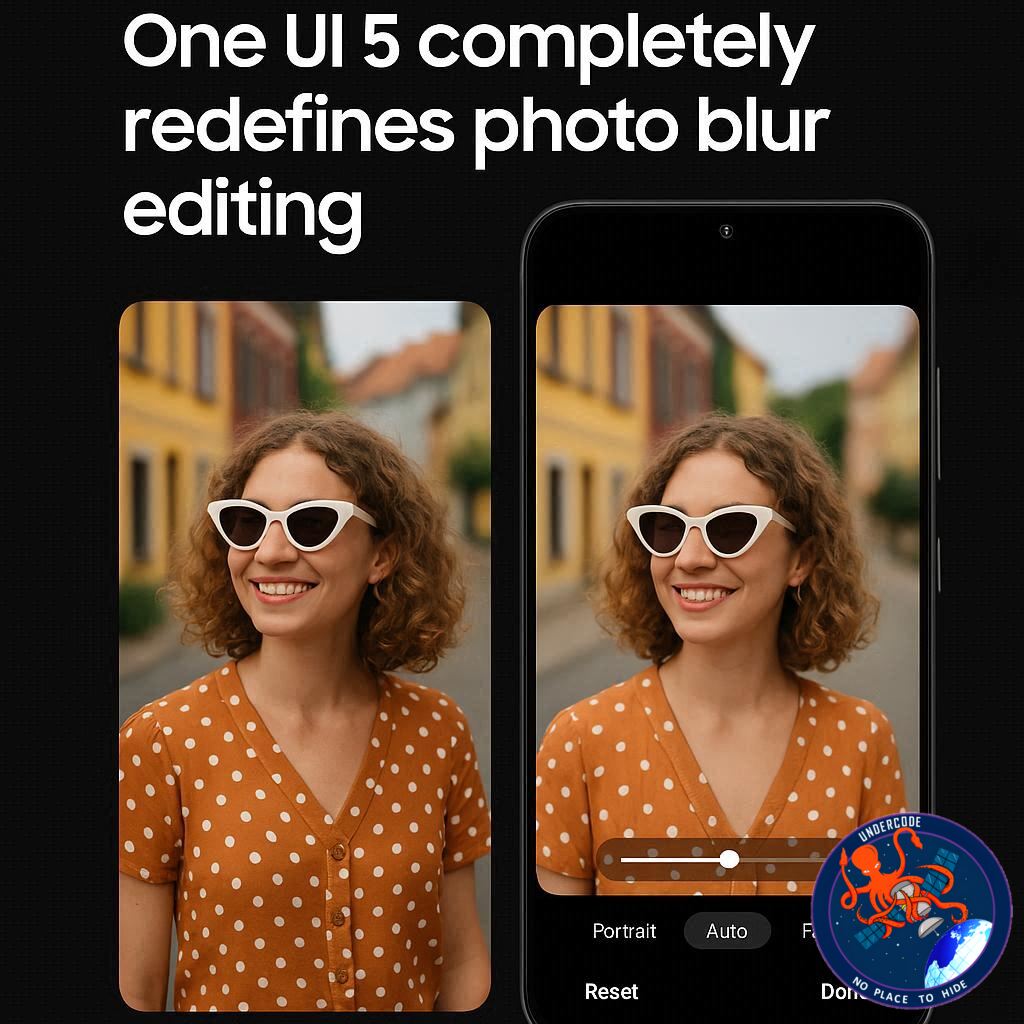
Introduction: A Small UI Change With Big User Impact
Samsung’s One UI has always been a moving target, constantly refined, rearranged, and sometimes rethought entirely. With One UI 8.5, Samsung has once again adjusted how users interact with one of the most popular mobile photography features: background blur. While the change may seem subtle on the surface, it significantly alters how Galaxy users edit portrait photos and apply blur effects to regular images. For many, this update may initially feel confusing—but it also signals Samsung’s broader vision for a cleaner, more unified editing experience.
the Original
Samsung has a long history of redesigning user interface elements in One UI, and photo editing features are no exception. Over the years, tools have been moved, hidden, or reintroduced in different places, sometimes improving usability and sometimes creating confusion. In One UI 8.5, Samsung has removed one of the two previously available methods for adjusting background blur in photos.
In earlier versions, particularly before One UI 6.1, editing portrait blur was simple. Users could open a portrait photo in the Gallery app and immediately see a “Change background effect” button at the bottom of the screen. This allowed quick access to blur intensity adjustments and different blur styles.
Later, Samsung relocated this option to a less obvious location. Users had to swipe up on a photo to reveal additional tools, including background blur controls. While functional, this change reduced discoverability.
With One UI 7.0, Samsung improved the situation by introducing a second, more intuitive method. Users could tap the edit (pencil) icon and adjust background blur directly from the main photo editor, alongside standard editing tools like brightness, contrast, and cropping.
Now, with One UI 8.5, Samsung has decided to eliminate the swipe-up method entirely. Swiping up on photos still reveals options such as Remaster, Live effect, and Erase reflections, but background blur controls are no longer present there. This has led some users to believe the feature was removed altogether.
In reality, blur editing is now exclusively accessible through the photo editor. To adjust blur on a portrait image, users must open the photo, tap the pencil icon, and select the second icon in the bottom toolbar, located next to the Galaxy AI button. From there, blur intensity and effects can be modified.
For regular photos that were not taken in Portrait mode, users can still add background blur by tapping the last icon in the editor’s bottom row and selecting “Background blur.” However, this option only appears for images containing people or animals, and it offers only a standard blur effect. Photos without recognizable subjects will not show the blur option at all.
What Undercode Say:
Samsung’s decision to centralize background blur controls inside the main editing interface reflects a broader shift toward simplification and consistency. Rather than scattering tools across swipe gestures and hidden menus, One UI 8.5 pushes users toward a single, standardized workflow. From a design philosophy standpoint, this makes sense.
However, the execution comes at a cost. Long-time Galaxy users had already built muscle memory around swiping up to access advanced photo options. Removing that pathway without clear onboarding or visual hints creates unnecessary friction, especially for casual users who may not frequently explore the full editor.
This change also highlights Samsung’s increasing reliance on the photo editor as a “one-stop hub” for both traditional and AI-powered tools. The placement of blur controls near the Galaxy AI button is not accidental—it subtly reinforces the idea that computational photography and AI enhancements now sit at the core of the Galaxy camera experience.
Another key takeaway is Samsung’s continued limitation of background blur for non-portrait photos. By restricting blur to images with detected people or animals, Samsung prioritizes realism and subject separation quality. While this avoids messy results, it also limits creative freedom compared to some third-party editing apps.
From a competitive standpoint, this update keeps Samsung aligned with Apple and Google, both of which favor centralized, editor-based workflows over gesture-heavy shortcuts. The risk, however, is that power users may feel Samsung is removing flexibility in favor of simplicity.
Ultimately, One UI 8.5 doesn’t remove features—it hides them behind a more rigid structure. Users who adapt will find the tools just as capable as before, but the learning curve reset may frustrate those who expect continuity across updates.
Fact Checker Results
Samsung did remove the swipe-up background blur option in One UI 8.5, not the feature itself.
Background blur controls remain fully functional within the photo editing interface.
Blur for non-portrait photos is still limited to images containing people or animals.
Prediction
Samsung is likely to continue consolidating camera and photo tools into a single editing hub, gradually phasing out gesture-based shortcuts. Future One UI versions may introduce guided hints or AI-driven suggestions to compensate for reduced discoverability, especially as Galaxy AI becomes more central to the photography experience.
🕵️📝✔️Let’s dive deep and fact‑check.
References:
Reported By: www.sammobile.com
Extra Source Hub (Possible Sources for article):
https://www.facebook.com
Wikipedia
OpenAi & Undercode AI
Image Source:
Unsplash
Undercode AI DI v2
Bing
🔐JOIN OUR CYBER WORLD [ CVE News • HackMonitor • UndercodeNews ]
📢 Follow UndercodeNews & Stay Tuned:
𝕏 formerly Twitter 🐦 | @ Threads | 🔗 Linkedin | 🦋BlueSky | 🐘Mastodon


