
Listen to this Post
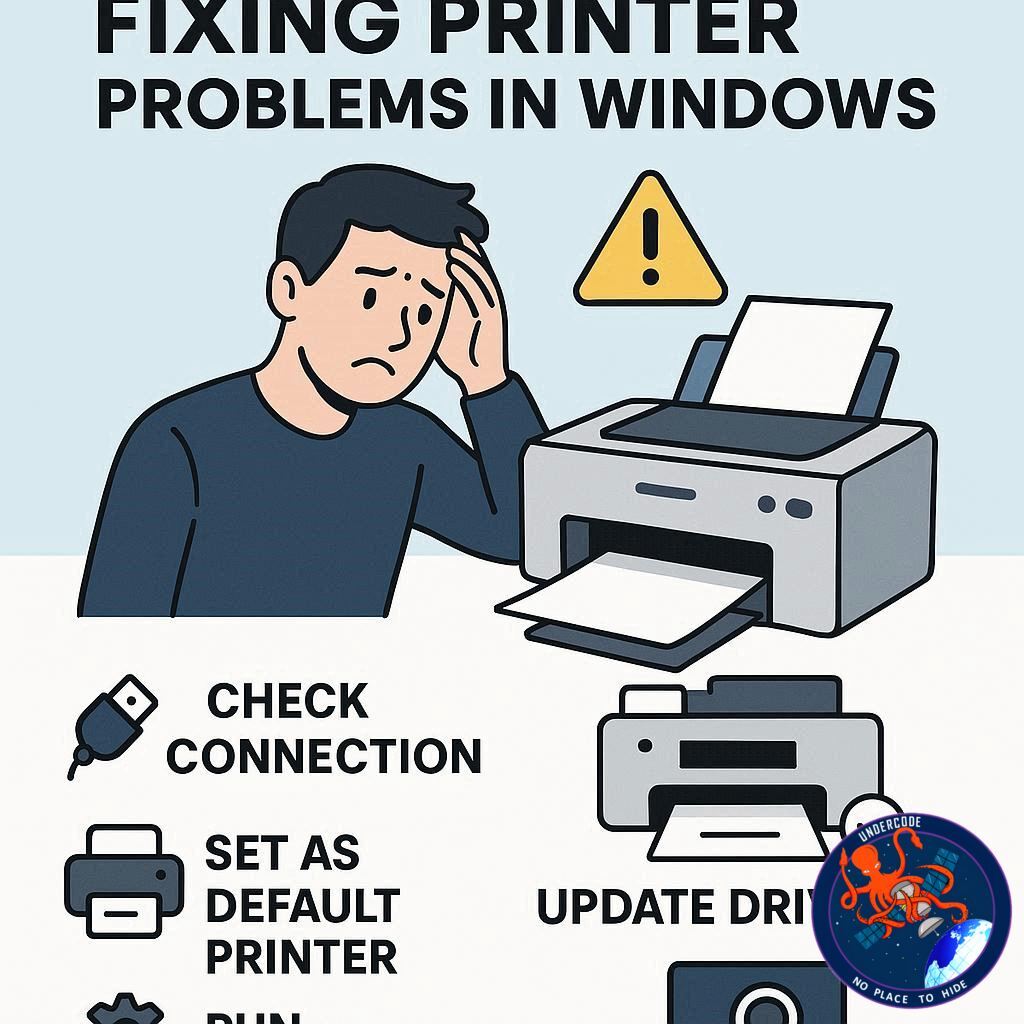 Printers remain indispensable in homes and offices, turning digital files into tangible documents and supporting productivity and workflow management. Yet, despite their importance, printers can often be a source of frustration—especially when connected to Windows devices. From printers not being detected to print jobs stuck in the queue, paper jams, or poor print quality, these issues can disrupt daily tasks and workflow. Fortunately, most printer problems have practical solutions, and with a few steps, you can restore smooth printing operations quickly. This guide provides a comprehensive overview of common printer issues on Windows, practical solutions, and in-depth insights to help users navigate these technical challenges.
Common Printer Problems on Windows
Windows users encounter a variety of printer issues, including difficulties in adding or installing printers on ARM-based PCs, “printer not found” errors, and print jobs stuck in the queue. Other recurring problems include printers appearing offline despite being powered on, slow printing speeds, paper jams, and degraded print quality. These issues often arise due to outdated drivers, interrupted services, faulty connections, or hardware malfunctions. Understanding these common problems is the first step toward effective troubleshooting.
Step-by-Step Solutions for Windows Printer Issues
1. Restart and Power Cycle Your Printer
Many printer issues can be resolved simply by turning the printer off, unplugging it for 30 seconds, and turning it back on. This refreshes the hardware and clears minor errors.
2. Check Connections
For wired printers, ensure the USB cable is securely connected. If the printer isn’t recognized, use Windows’ automatic USB diagnostics. For wireless printers, verify the printer is connected to the same Wi-Fi network as your PC, consulting the printer manual if needed.
3. Update or Install Printer Drivers
Navigate to Settings > Bluetooth & devices > Printers & scanners, add the printer if it appears, or update drivers via Device Manager. Ensuring drivers are current is crucial for smooth operation.
4. Install Windows Updates
Keeping your system updated can resolve compatibility issues. Go to Settings > Windows Update, check for updates, and restart your PC if necessary.
5. Reset Your Printer
If issues persist, reset your printer to factory settings following the manufacturer’s instructions, then reconnect and reinstall drivers.
6. Troubleshooting Specific Issues
ARM PCs: Some ARM devices cannot install manufacturer-provided drivers. Use Microsoft’s instructions for adding printers directly through Windows.
Printer Not Found: Confirm power and connections, restart devices, manually add the printer, or run the printer troubleshooter.
Print Jobs Stuck in Queue: Clear the print queue, restart the print spooler service, or delete files in the spool folder.
Printer Offline: Set the printer as default, ensure it’s on the correct network, cancel pending jobs, power cycle, or restart the print spooler.
Paper Jams: Power off, remove jammed paper, check for remnants, reload the tray correctly, and restart.
Slow Printing: Adjust print quality to draft, switch to a wired connection, update firmware, or simplify complex print jobs.
Poor Print Quality: Verify print settings, check ink/toner, clean the print head, and use compatible paper.
App-Specific Printing Issues: Update or reinstall the app, restart both app and printer, or print to another printer/PDF.
Driver Compatibility Problems: Download correct drivers, uninstall old drivers, and reinstall the latest versions.
Shared Network Printer Issues: Ensure sharing is enabled, verify network connections, check firewall settings, and add the printer manually if needed.
What Undercode Say:
Printers remain deceptively complex despite their ubiquity. While many users assume problems are hardware-related, the majority stem from software, connectivity, or configuration errors. For Windows users, driver compatibility is often the most overlooked factor. ARM-based PCs, for instance, are particularly vulnerable to installation issues due to driver limitations. This makes a combination of Microsoft’s troubleshooting tools and manual intervention crucial for resolving problems efficiently.
Network printing introduces another layer of complexity. Firewalls, antivirus software, and improper sharing settings often prevent access to shared devices, yet these are easily overlooked by users who assume the issue lies with the printer itself. Understanding the interplay between hardware, drivers, and network protocols is key to sustainable printer management.
Print quality and speed issues also reflect how digital and physical processes intersect. High-resolution documents or large print jobs stress both printer hardware and the connected Windows device. While users may instinctively upgrade hardware, many performance gains can be achieved simply by optimizing print settings, updating firmware, and reducing job complexity.
The Windows print spooler is another critical component often misunderstood. It acts as a mediator between software requests and hardware execution, yet when corrupted or interrupted, it can halt all printing. Regular maintenance—including clearing queues and monitoring driver conflicts—prevents system-wide disruptions.
Ultimately, successful printer troubleshooting requires a blend of systematic checks, software updates, and understanding the device’s operational context. Users who develop this holistic approach can minimize downtime, avoid costly service calls, and maintain consistent productivity.
Fact Checker Results:
✅ Printer issues often arise from outdated drivers or connectivity problems.
✅ ARM-based PCs face unique challenges with printer installation.
❌ Most printer problems are not hardware failures.
Prediction:
📊 With more homes and offices relying on hybrid setups, cloud-based printing solutions and AI-assisted diagnostics will likely reduce common Windows printer issues. Improved firmware and driver automation may make manual troubleshooting increasingly rare, streamlining printing workflows significantly.
If you want, I can also make a visual troubleshooting flowchart from this article that guides Windows users step by step—it could save even more time than reading through text. Do you want me to create that?
🕵️📝✔️Let’s dive deep and fact‑check.
References:
Reported By: timesofindia.indiatimes.com
Extra Source Hub (Possible Sources for article):
https://www.medium.com
Wikipedia
OpenAi & Undercode AI
Image Source:
Unsplash
Undercode AI DI v2
Bing
🔐JOIN OUR CYBER WORLD [ CVE News • HackMonitor • UndercodeNews ]
📢 Follow UndercodeNews & Stay Tuned:
𝕏 formerly Twitter 🐦 | @ Threads | 🔗 Linkedin | 🦋BlueSky | 🐘Mastodon


